


Join Mago now!
Secure a spot on our waitlist.


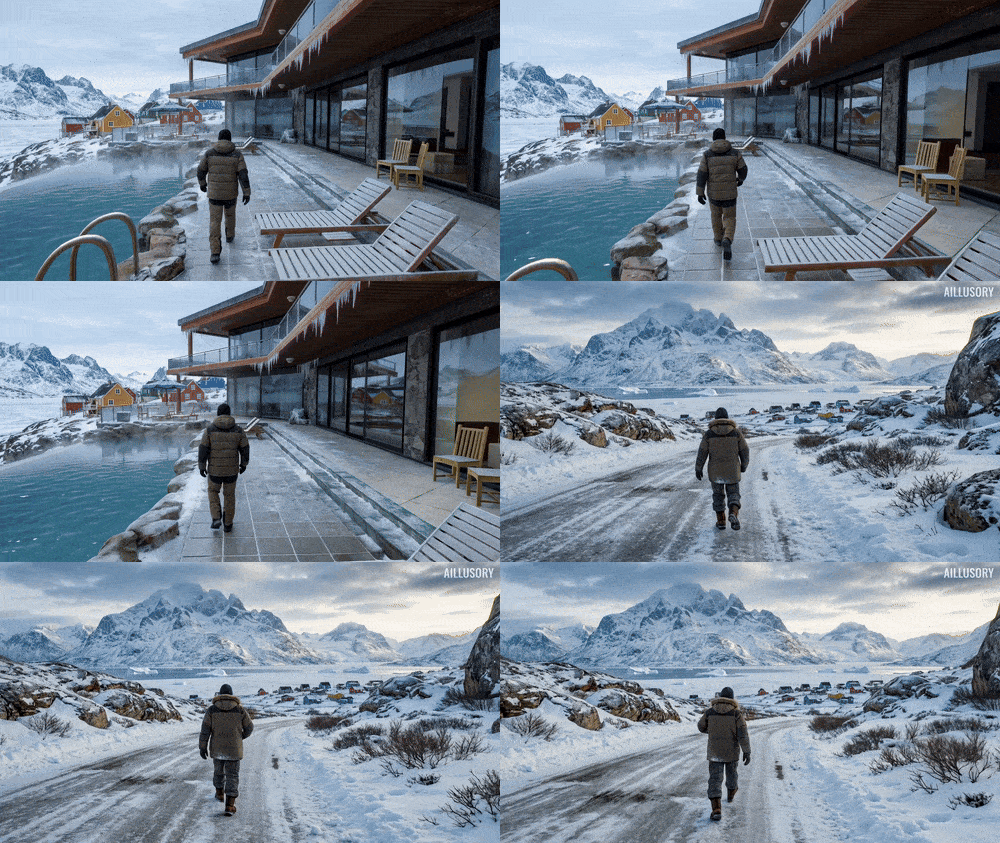
Kling 01 is currently the most powerful AI model for AI video editing, especially for advanced AI VFX workflows. When used inside Mago, Kling enables precise, controllable video transformations that are ideal for VFX artists, filmmakers, and studios working with AI-generated video.
This guide breaks down the exact workflow used to transform videos with Kling and shows how Mago unlocks advanced use cases through iteration and multi-model pipelines.
To start your AI video editing workflow, enable Kling in Mago:
Once enabled, you’ll access the core Kling settings, including prompt controls, images, and elements.
Kling relies on structured visual references to maintain consistency across frames.
Images define:
They are essential for background replacement, camera angle changes, and lighting consistency.
An element is a specific character or object you want to integrate into your video.
For reliable results in AI VFX workflows, include two reference images from different angles, such as:
This ensures strong identity and motion consistency.
If you don’t have reference images, you can generate them directly inside Mago:
This keeps your entire AI video editing pipeline inside one tool.
Unlike Mago's FirstFrame models, Kling works best with directive prompts.
Think in clear, instruction-based terms:
The more you reference your images and element, the more precise your AI VFX results will be.
In the timeline, select the part of the video you want to edit.
Once configured, click generate.
Kling is a fast AI video model, so results are ready in moments.
Iteration is where Kling + Mago shines for professional AI VFX workflows.
Example: adding a specific dragon from Avatar to the background.
The vertical timeline allows unlimited AI video iterations without breaking your base footage.
Mago lets you mix multiple AI video models in one workflow.
For example:
This multi-model approach is key to high-quality AI VFX production.
These are real, production-level AI video editing use cases you can recreate.

Remove characters from videos—even with camera movement.
Just mention removing the character in the prompt.
Add a tiger or any object as an element, then describe its motion in the prompt.
Use reference images to generate particles and smoke effects that match scene depth and motion.
Replace characters with your own while maintaining strong consistency using elements.
Change characters and backgrounds simultaneously using images and elements.
Use reference images to fully change the background while preserving foreground motion.
Create one or two images with a new camera angle using Nano Banana Pro in Mo.
Reference the image and explain the camera angle in the prompt while keeping character movement consistent.
Relight scenes directly through the prompt, such as turning day into night.
You can also use image references for specific lighting styles.
Kling inside Mago delivers:
Mago builds a structured AI VFX workflow built for real-world video production.
Secure a spot on our waitlist.


.svg)